From Code to Container: A Guide to Efficiently Publish Spring Boot on Docker🚀🚀
5 min read #springboot #docker #containers #backend
In this article, we will explore the process of Dockerizing a Spring Boot application and delve into techniques for reducing the image size of our docker image. So before we move further lets understand some fundamentals of what is docker and what is docker image?
Docker
Docker is a containerization platform that provides easy way to containerize your applications, which means, using Docker you can build container images, run the images to create containers and also push these containers to container regestries such as DockerHub, Quay.io and so on. Docker provides the ability to package and run an application in a loosely isolated environment called a container. The isolation and security lets you run many containers simultaneously on a given host. Containers are lightweight and contain everything needed to run the application, so you don’t need to rely on what’s installed on the host. You can share containers while you work, and be sure that everyone you share with gets the same container that works in the same way.
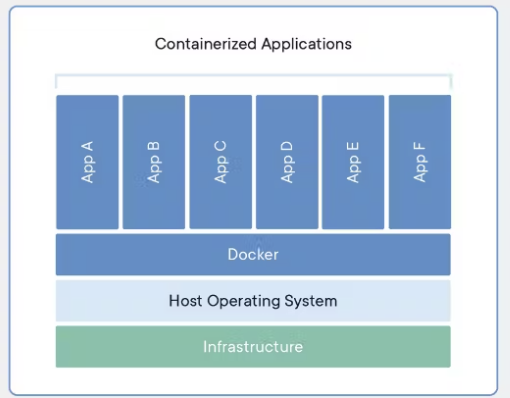
Image
A docker image is just a package of software it consist standalone, and executable software unit that contains all the necessary components and dependencies required to run an application. It encapsulates the application code, runtime, system libraries, and settings in a lightweight, portable, and standardized format. Docker images serve as the building blocks for containers, which are instances of running applications.
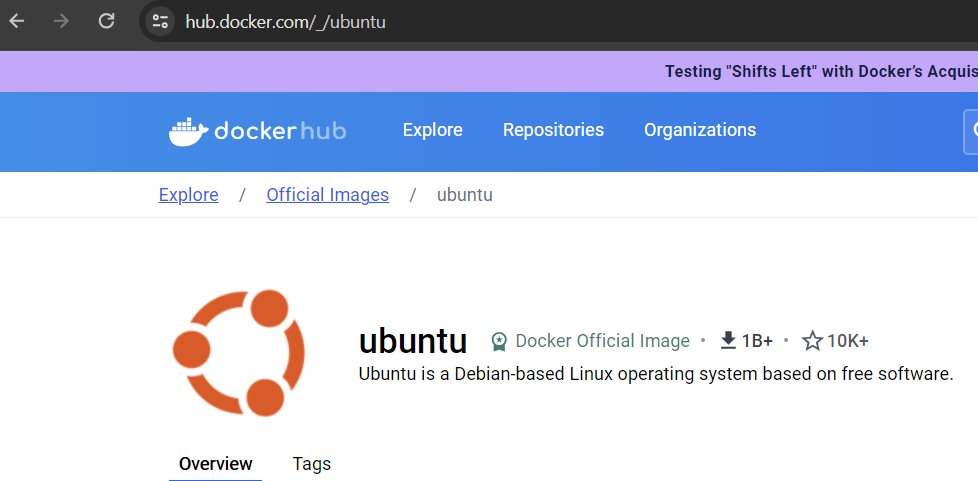
These images can be accessed on different Docker registries, including Docker Hub. Their size is intentionally kept small, containing only the essential libraries and software required to execute the application. Other components such as system libraries, file systems, and networking stacks are accessed from the host operating system, allowing the images to remain lightweight. This design ensures that Docker images are portable, efficient, and easily distributable across various environments
Now to get this image in our local system we need to install docker on our system after that we can pull the required image from dockerhub or any other docker registry. assume docker hub as github for images.
after installing docker on system execute below command in cmd
docker pull imagename:tagin this article we are mainly focused on creating the image. so lets create a image for out springboot application
Dockerize SpringBoot application
i have created a simple springboot application springboot-docker
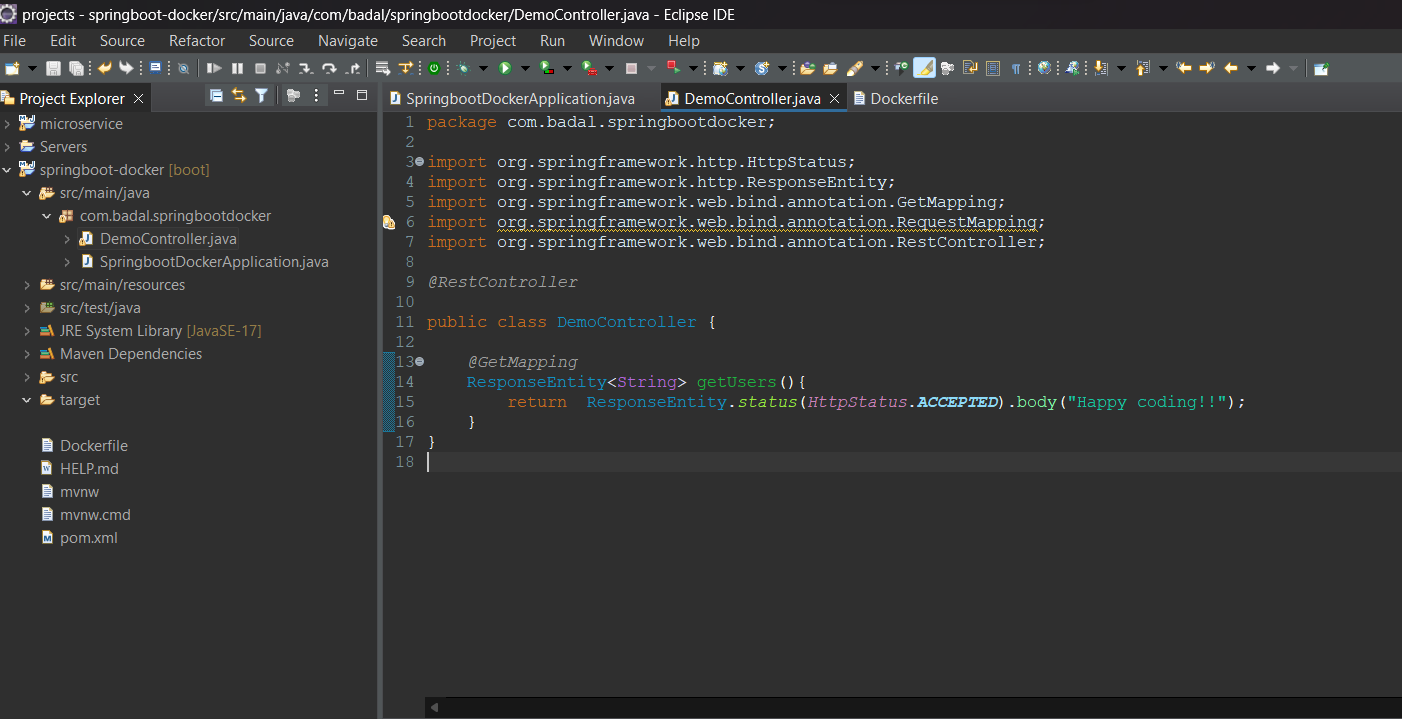
To Dockerize an application, we leverage a Dockerfile—a script that provides instructions for building a Docker image. Below is a brief overview of a Dockerfile and its role in the Dockerization process:
-
select a base Image
Start with a base image that provides the foundational operating system and environment for your application. Choose an image that aligns with your application’s requirements. this base image will be very lightway in nature
FROM eclipse-temurin:17-jdk-alpine -
create a directory
RUN mkdir -p /app/source -
select a work directory
Specify the working directory inside the container where the application code and files will be copied.
WORKDIR /app/source -
Copy the required files
copy all the necessory file
COPY . . -
Expose port
If your application exposes specific ports, use the
EXPOSEinstruction to inform Docker about the network ports that should be published.EXPOSE 8080 -
Run maven command to Build the project
RUN ./mvnw cleane package -
Define the Command to Run the Application:
Specify the command that Docker should execute when the container starts. This typically involves running the main executable or script for your application
ENTRYPOINT ["java", "-jar", "/app/source/target/springboot-docker-0.0.1-SNAPSHOT.jar"]
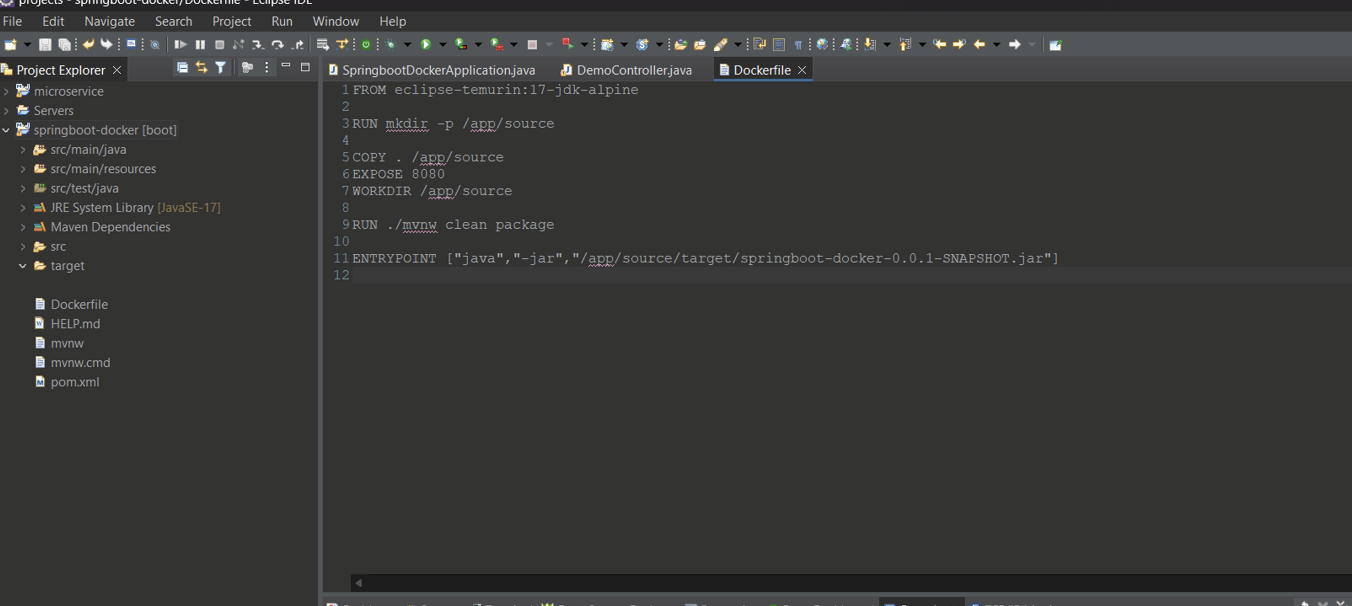
Now we have create a basic DockerFile to dockerize our application now we just have to build our project. to build our docker application run command:
docker build -t dockerusername/app-name:tag .for out application it will be
docker build -t badaljha/springboot-docker:latest .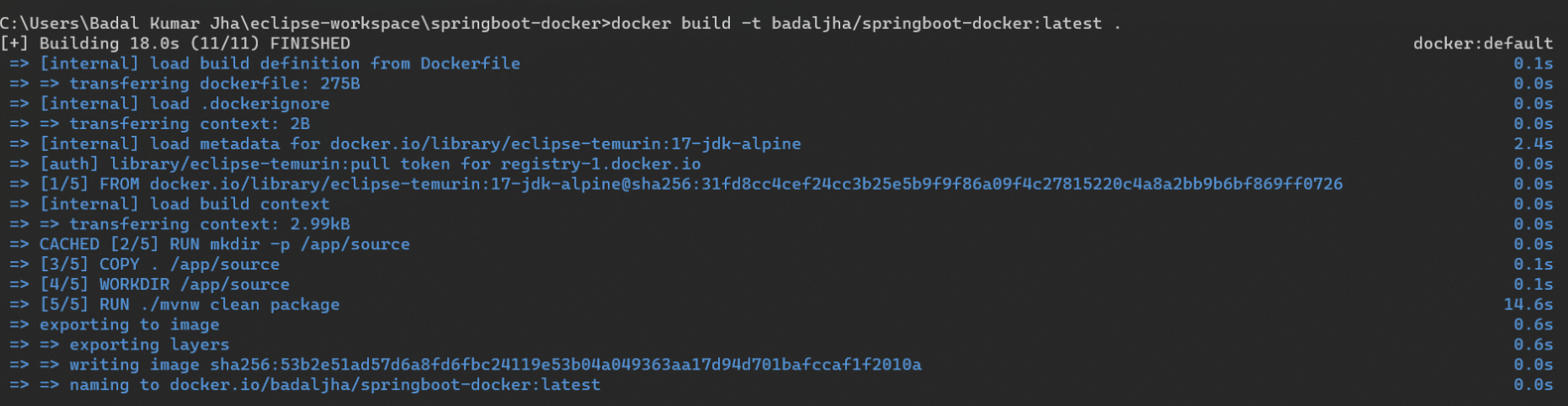
Now to see the image we have create run command docker images
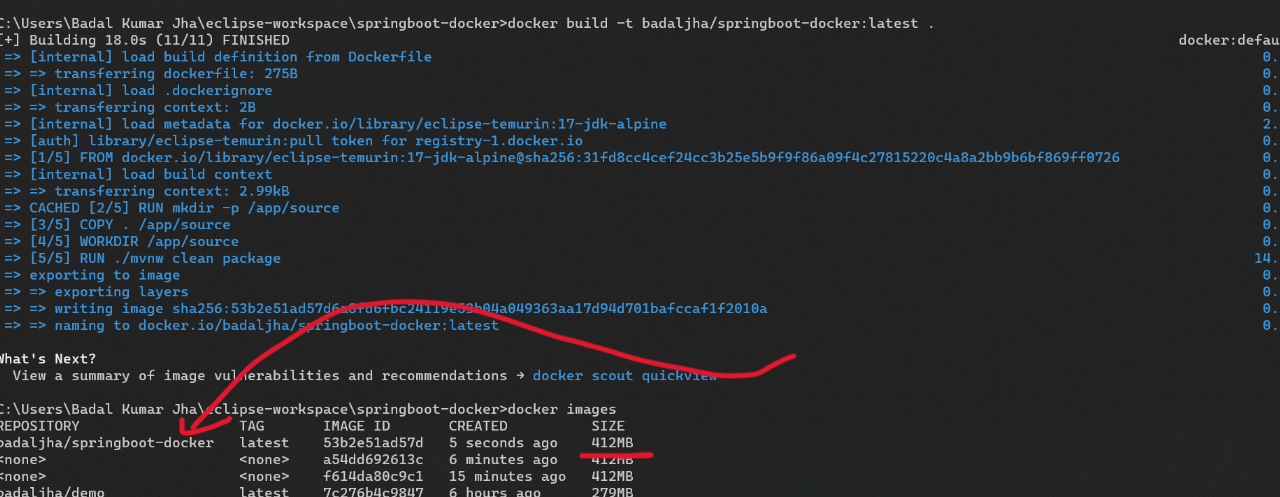
Now we have created our image to run the image and create the container we can use run command
docker run -it -p 8080:8080 app-name
-it tag is to run application in attach mode and -p is for port mapping
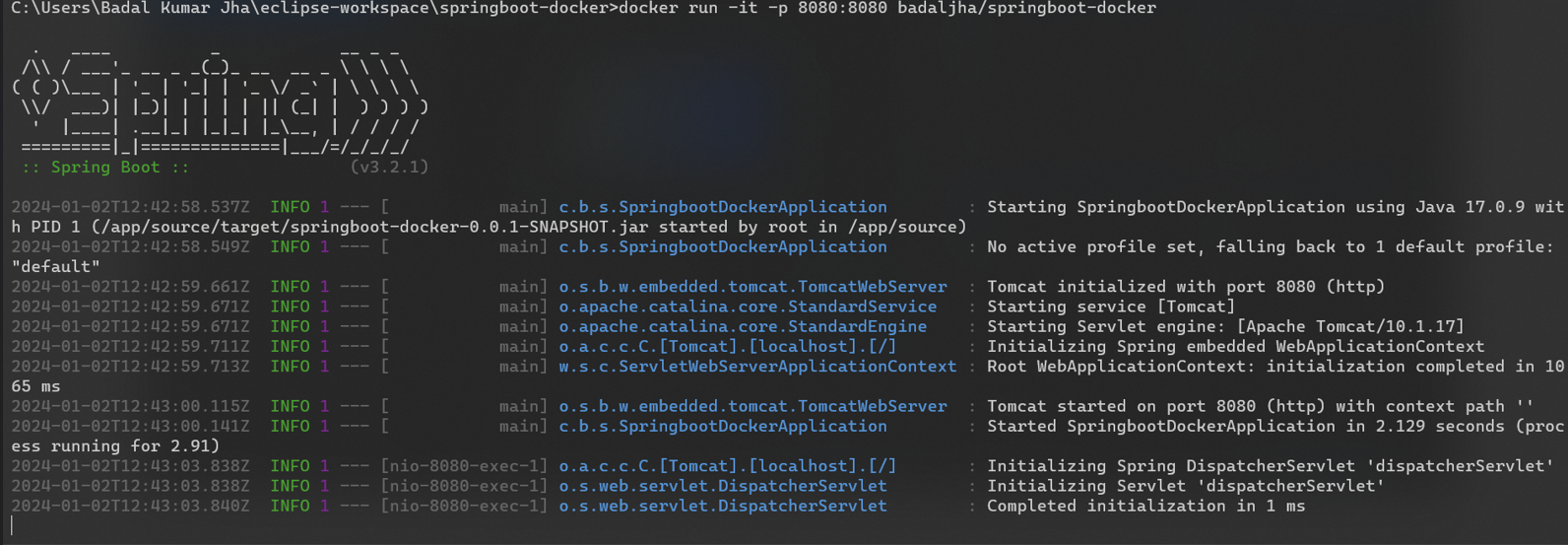
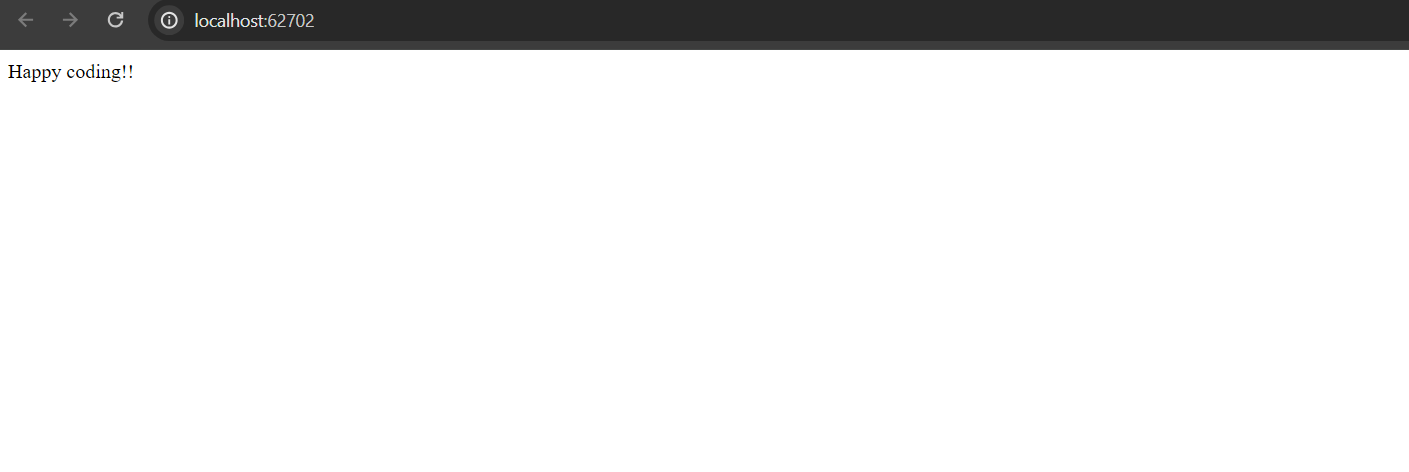
it is running now if we want we can push it to docker registry using docker push command
As we can see when we run docker images the size of our application is 412MB can we reduce the size of our image??
So the answer is yes we can optimize our dockerFile and reduce the size of our image. we can use multi stage dockerfile
Multistage Dockerfile
A multistage Dockerfile is a feature in Docker that allows you to use multiple “FROM” statements in a single Dockerfile, creating multiple build stages. Each stage represents a phase in the build process, and you can selectively copy artifacts from one stage to another. This feature is particularly useful for optimizing the final Docker image size and improving build efficiency.
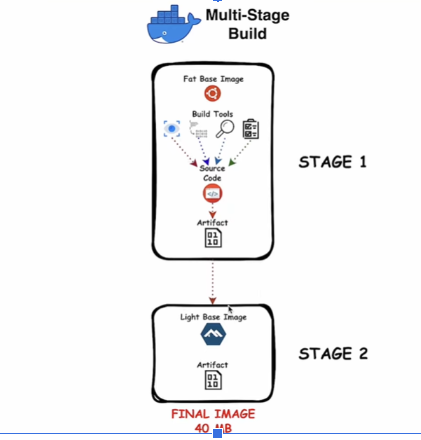
The need for multistage builds becomes evident in scenarios where building an application involves several dependencies and tools, but the runtime environment requires only a subset of them. Multistage builds help create a lightweight production image containing only the necessary artifacts, reducing the overall image size.
To execute the application, there is no requirement for build tools or libraries used during the project’s construction. The essential components include the JAR file, the JDK for running the JAR, and a few necessary libraries. Adopting a multistage approach involves dividing the task into multiple stages. In the initial stage, we build our application, and in the final stage, we transport the JAR file along with the EntryPoint or CMD
Ideally you want the image to contain only the items that are required by the container to achieve its purpose. so lets build our project in first stage and share the jar file to final stage.
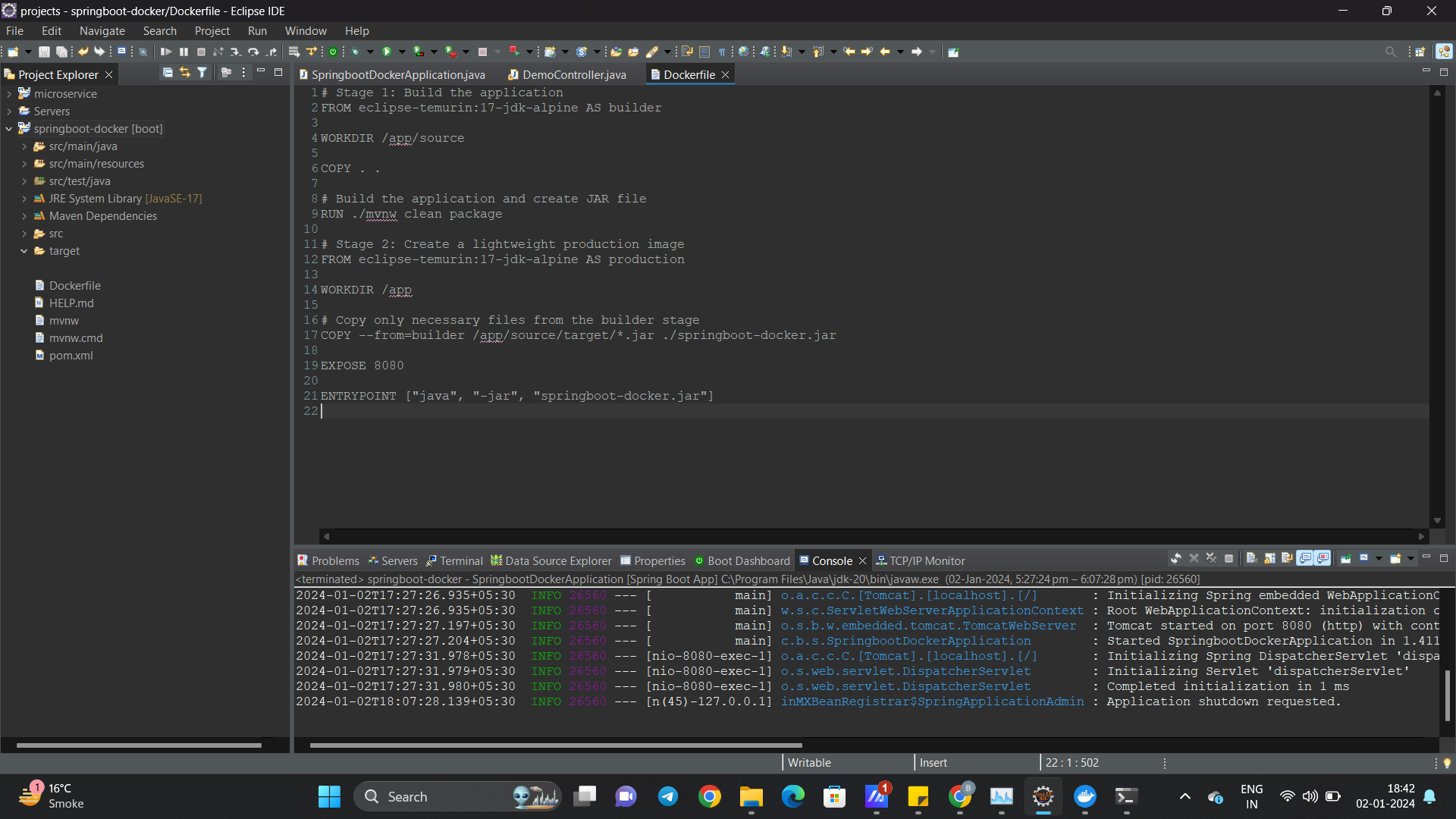
After making changes to the Dockerfile, let’s rebuild our project and examine whether the image size has been reduced. Executing the command 'docker build -t badaljha/springboot-docker:latest' produced the following output:”

As observed, the size of our images has been successfully reduced to 335MB from the previous 412MB. Although the current Dockerfile is effective, there are additional optimizations that can further decrease the image size. In this article, the emphasis was on demonstrating the usage of a multistage Dockerfile, prioritizing clarity over achieving the most optimal size. Future improvements can involve crafting a more efficient Dockerfile to achieve even greater size reduction.
Stay tuned for more informative articles, and see you in the next one. Follow me for more engaging software engineering content!
Happy Coding🚀🚀